Make sure you have Google 2-Step Verification turned on: https://www.google.com/landing/2step/
As explained in this article: https://support.google.com/accounts/answer/185833?hl=en, create an application specific password, "App Password", 'my-app-password' below, for your SMTP connection: https://security.google.com/settings/security/apppasswords
Now you can use the following mail settings:
SMTP Host smtp.gmail.com
SMTP Port 587
SMTP Security STARTTLS
SMTP Authentication Yes
SMTP Username
SMTP Password my-app-password
- Details
- Written by: Toivo Talikka
- Category: Joomla
- Hits: 11460
If your Joomla! site has issues in connecting to your SMTP mail server, it is possible to get a detailed log of all the messages exchanged between your Joomla site and the SMTP server. Inspecting this low level transaction log allows you to see what is going wrong between the two servers and then get your IT department or hosting provider to resolve any connectivity issues.
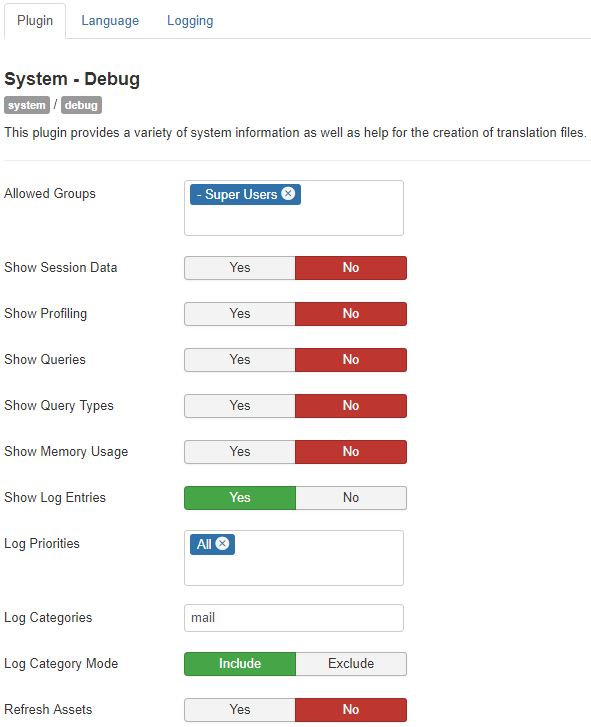
Go to Extensions - Plugins and configure the system plugin 'System - Debug' with the following settings:
- Allowed Groups: Super Users
- Log Priorities: All
- Log Categories: mail
- Log Almost Everything

Go to Global Configuration and turn on the debug option in the System tab - Debug Settings - Debug System.

Go to the Server tab - Mail Settings and click the button Send Test Mail.

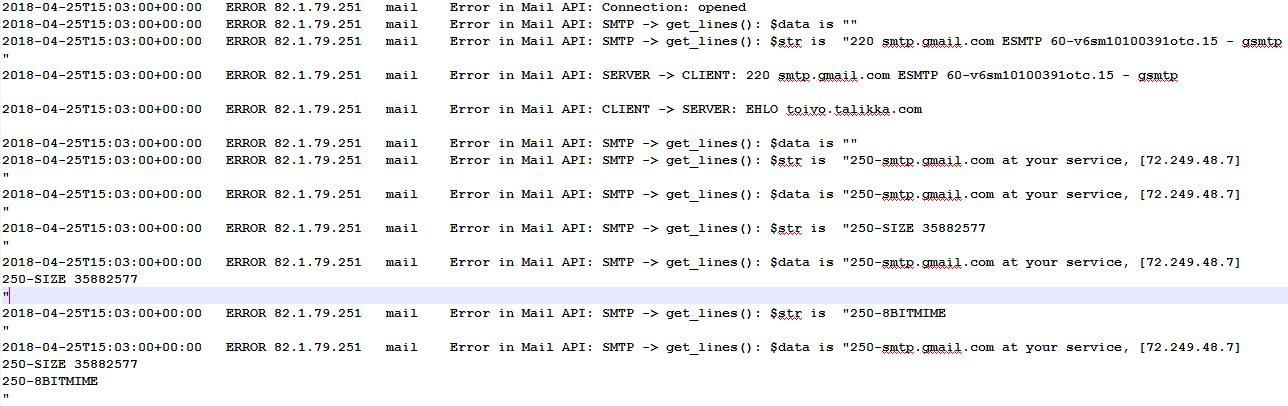
The test result, success or failure, will then get displayed as a system message, but you can download the detailed log file 'everything.php' from the Joomla log folder, usually administrator/logs, or, if your site was installed much earlier, from the /logs folder in the main Joomla folder.
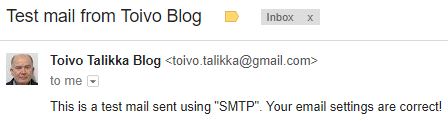
And this is the email we would like to receive from the website:
More about logging from the Joomla! Documentation at https://docs.joomla.org/Using_JLog
- Details
- Written by: Toivo Talikka
- Category: Joomla
- Hits: 12468
The Joomla 3.x Control Panel shows a list of users who were active at the site, at the front end or the back end.
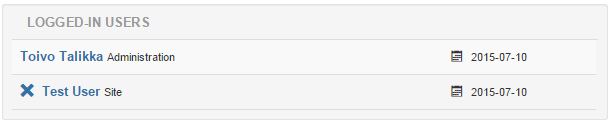
The data is displayed by a module called Logged-in Users. In previous versions of Joomla the time of the last activity was also displayed for each user, which was useful. In version 3.x only the date is included. If you want to add the time back to the listing, it can be done easily in a template override. Here are brief instructions how to do that in Joomla 3.4.3, using the Isis administration template.

If you do not want to hard code the date & time format into the layout, you can define your own format as a language constant in the Language Manager - Overrides.
Subsequent Joomla updates will not overwrite the override code but you need to maintain it, should something change in the core code.
- Details
- Written by: Toivo Talikka
- Category: Joomla
- Hits: 14074
Would you like to create a module to display some statistics from another Joomla site, hosted in the same server? That is perfectly possible and relatively simple, by using the Joomla database connection to an external database.
A proof of concept module, Databases, can be downloaded from https://extensions.talikka.com/downloads/databases/mod_databases-1.0.0.zip
- Details
- Written by: Toivo Talikka
- Category: Joomla
- Hits: 13459